Boat tour photo backups: Save your Honolulu memories
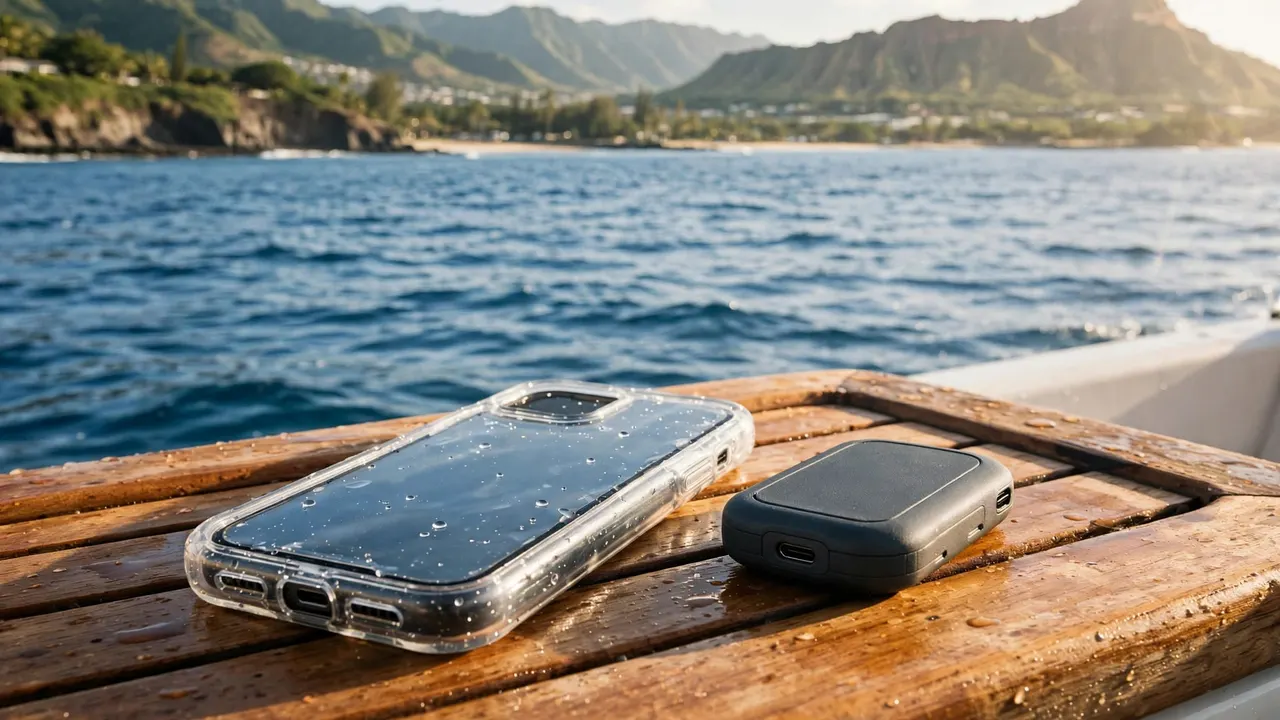
Reliable boat tour photo backups start before boarding: protect your device, then keep your pictures in separate places afterward. With us at Living Ocean Tours, you can enjoy Honolulu’s coastline without leaving your favorite family photos vulnerable to one lost phone.
A sealed case helps protect your equipment, while an independent copy protects the memories inside it. Set up a simple routine before departure so you can spend more time watching the ocean and less time managing files.
Key takeaways for saving your ocean photos
- Back up existing photos before bringing your phone or camera aboard.
- Test an empty waterproof case with dry tissue before putting your phone inside.
- Let uploads finish, then open several full-size photos and videos.
- Keep a separate copy of original files before deleting anything or formatting a memory card.
Set up boat tour photo backups before boarding
Prepare storage, power, and your cloud account
Charge your phone and camera before leaving your accommodation. Then review available device storage so recording doesn’t stop during a memorable encounter.
Remove downloaded entertainment you no longer need before deleting irreplaceable photos. If you clear older pictures, save them elsewhere first. Large videos deserve attention because they can fill storage faster than still photographs.
For an iPhone, Apple’s iCloud Photos setup guidance explains how to connect your photo library to iCloud. Enable your chosen service while you have reliable Wi-Fi, rather than starting the process at the harbor.
Also make sure you know which account receives the uploads. A family member’s account or an old login can make recovery confusing later.
Include every camera in your plan
Your phone’s automatic upload won’t necessarily include an action camera or a separate digital camera. Decide how you’ll transfer those files before packing.
Bring the appropriate cable or card reader if you already use one. Otherwise, keep the memory card secure until you can transfer its contents after the outing.
Couples and families should also decide who holds the original files. A picture sent through a messaging app may arrive compressed, so a shared chat shouldn’t become your only archive.
Protect your phone and camera before departure
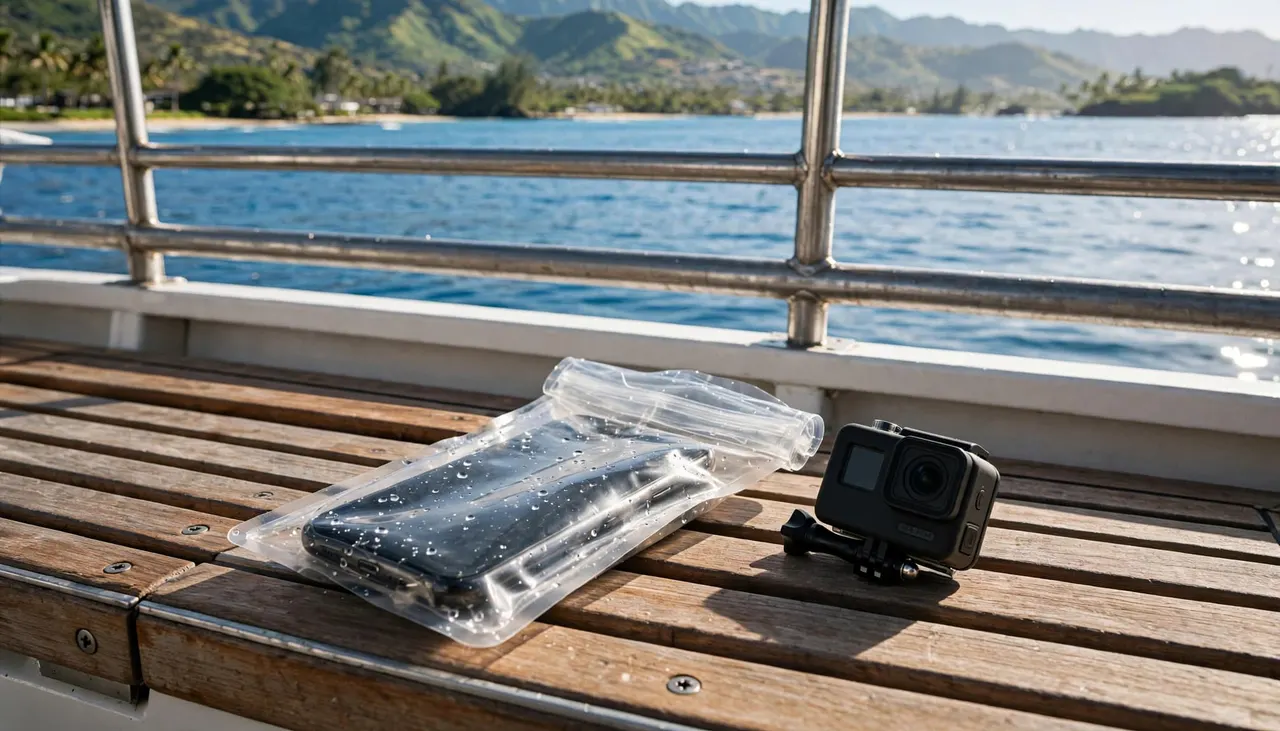
Test the case before trusting it
Put dry tissue inside the empty case and test it using the manufacturer’s procedure. Afterward, dry the exterior before opening it and inspect the tissue for moisture.
A successful test doesn’t excuse a dirty seal later. Hair, sand, and sunscreen can interfere with the closure each time you open it. Inspect the sealing surfaces again before inserting your phone.
Keep your device out if the tissue gets damp, the closure looks damaged, or the case doesn’t close fully. The dock is a better place to discover a problem than the water.
Remember that protective storage and photo backup solve different problems. A case cannot recover files after a device disappears.
Secure equipment between photographs
Use a suitable wrist strap or retention system, then store equipment inside a closed bag when you’re finished. Keep loose devices off towels and benches where they can slide or collect sand.
Put your camera away before climbing stairs or using a boarding ladder. You’ll need your attention and a free hand for moving safely.
After snorkeling, wait until you’re seated in a dry, stable spot before opening a case. Dry its exterior first so droplets don’t fall inside.
While photographing marine life, observe without touching animals or coral. Your camera shouldn’t pull your attention away from the crew’s directions.
Make your first copy after returning ashore
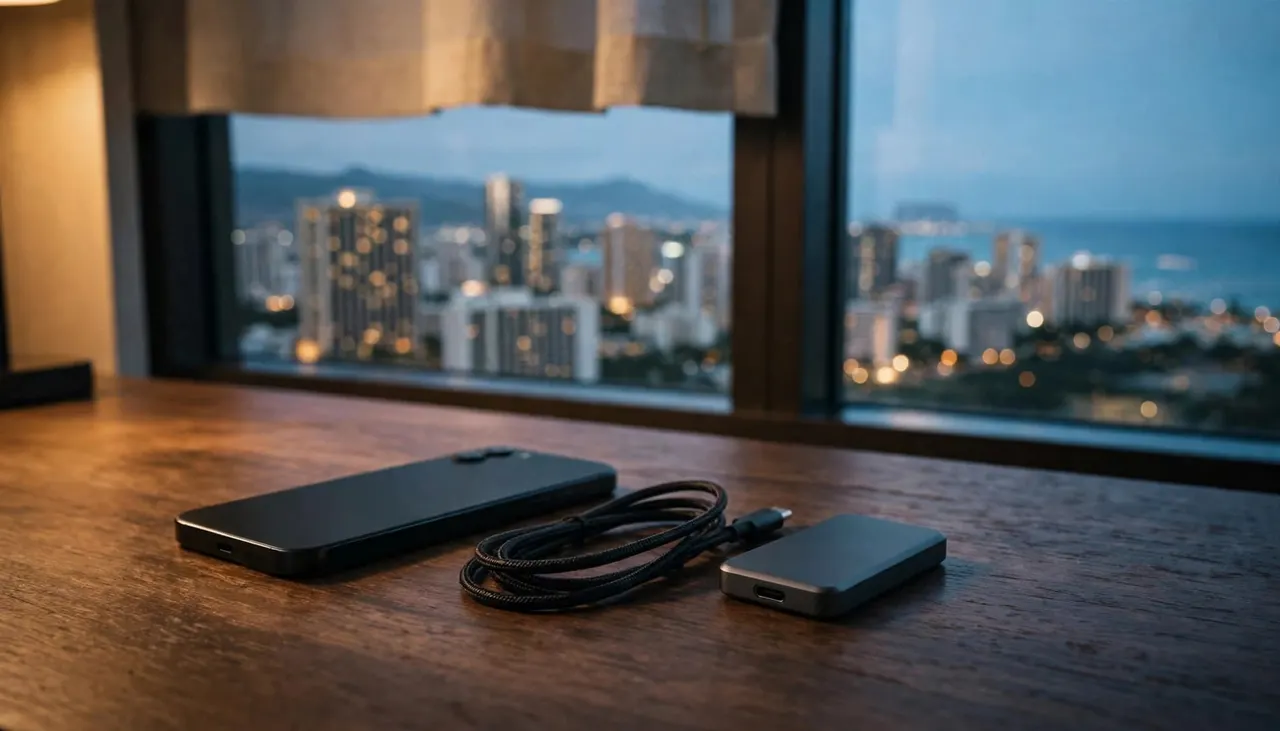
Start your boat tour photo backups once you’re settled somewhere dry with dependable Wi-Fi. Keeping this routine close to the outing reduces the chance of forgetting a camera card or an unfinished upload.
Give uploads time to finish
Connect your dry device to power and open your photo app. Look at its upload status rather than assuming a Wi-Fi connection means everything has transferred.
A long snorkeling video can take much longer than a handful of pictures. Background restrictions, a weak connection, or insufficient cloud storage can also interrupt the process.
Avoid deleting files while an upload remains pending. If you need to leave before it finishes, keep the originals untouched and resume later.
With iCloud Photos, your library stays connected across devices. Apple’s iCloud support overview explains that relationship between iCloud and the Photos app. Treat that connection carefully when organizing or deleting pictures.
Open the actual files
A thumbnail isn’t proof that a complete original reached its destination. Open several photographs at full size, including pictures taken near the end of the trip.
Play videos beyond the opening seconds, and move through longer clips. Include files from every device used by your group.
For a stronger confirmation, open the cloud library through a browser on another device. Make sure you’re viewing the correct account and the newest pictures.
Keep the camera card and phone originals until you’ve completed this review. Discovering an incomplete transfer is manageable while the source files still exist.
Keep an independent copy outside your synced library
For dependable boat tour photo backups, save another copy that won’t disappear when you delete something from your main library. Cloud syncing and independent backup are different protections.
With iCloud Photos, deleting an image on one connected device also deletes it across the synced library. A second device signed into that same library doesn’t provide an independent archive.
These storage options protect against different problems.
| Copy location | What it helps protect against |
|---|---|
| Phone or camera card | Losing access while another copy is still transferring |
| Cloud photo library | Losing or damaging the original device |
| Separate drive or exported folder | Accidental changes or deletions in a synced library |
Keep the separate archive outside any folder that automatically mirrors your photo library. Otherwise, the same deletion may reach both locations.
Export original files to a computer or compatible external drive. Save edited favorites separately so you retain the untouched versions for future cropping or printing.
Apple also lets you transfer an iCloud collection to Google Photos. That offers another route for copying a collection, although it isn’t a substitute for reviewing the destination files.
If you bring a portable drive, keep it apart from your phone after the transfer. Storing every copy in one beach bag leaves them exposed to the same loss.
Share Honolulu memories without losing originals
Shared albums make it easy for relatives to enjoy your trip. However, sharing tools complement boat tour photo backups rather than replace them.
Create a clearly named folder, such as “Honolulu Ocean Photos,” and keep each person’s originals together during collection. That makes missing pictures easier to spot before everyone heads home.
Use file transfers that preserve originals when collecting pictures for printing or editing. Social posts, screenshots, and some messaging settings can reduce quality or strip useful information.
Ask permission before posting a recognizable portrait of another passenger. Parents should also agree on how pictures of their children will be shared. A private album is a better choice when the intended audience is a small family group.
Keep booking confirmations, reservation codes, and personal travel documents out of photo-sharing folders. They don’t belong beside public vacation pictures.
Finally, protect the account holding your library with a strong, unique password and two-factor authentication. Your backup is less useful if someone else gains control of the account or you can’t sign in.
If your phone gets wet, lost, or damaged
Stop using a wet device and keep charging cables away from damp ports. Don’t rush to transfer pictures by connecting power while moisture is present.
If a phone falls overboard, alert the crew. Never enter the water or reach outside the railing to retrieve it. A device isn’t worth putting yourself or another passenger at risk.
Once you’re safely ashore, use another device to access your cloud account. Open the newest photos to see what transferred before the incident. Anything still waiting to upload may remain only on the missing device.
For a lost phone, use its platform’s device-location and account-protection features. Keep recovery codes and account access information somewhere other than that phone.
If a memory card reports an error, stop taking pictures on it. Continuing to record can overwrite recoverable material. Preserve the card for a qualified data-recovery service when the images justify the expense.
Enjoy the outing with Living Ocean Tours
Your preparation should make the trip feel easier, not turn it into a technology project. We depart from Kewalo Basin Boat Harbor near Waikiki, so organize your equipment before arrival and give the safety briefing your full attention.
We’re the only tour company with professional snorkel guides. If you’re new to snorkeling, tell your guide about any concerns and keep photography secondary while you get comfortable in the water.
You can compare our Honolulu ocean tour options to choose an outing that suits your family or partner. Bring only the equipment you can protect and manage comfortably.
Plan your photo routine before departure, then give yourself permission to put the screen away. Watching the coastline together belongs in the memory, too.
Bring home memories you can keep
A short routine makes boat tour photo backups easier: protect your equipment, finish the transfers, and preserve an independent copy. Keep originals until you’ve opened the saved files and played the videos.
Set everything up before boarding, then make the copies after returning ashore. That leaves your time on the water for your family, the reef, and Honolulu’s changing coastline.
Your favorite photographs deserve a safe home long after the boat returns to the harbor.